SOTA Scout

Current version: v0.98, released 2026-09-14
Overview
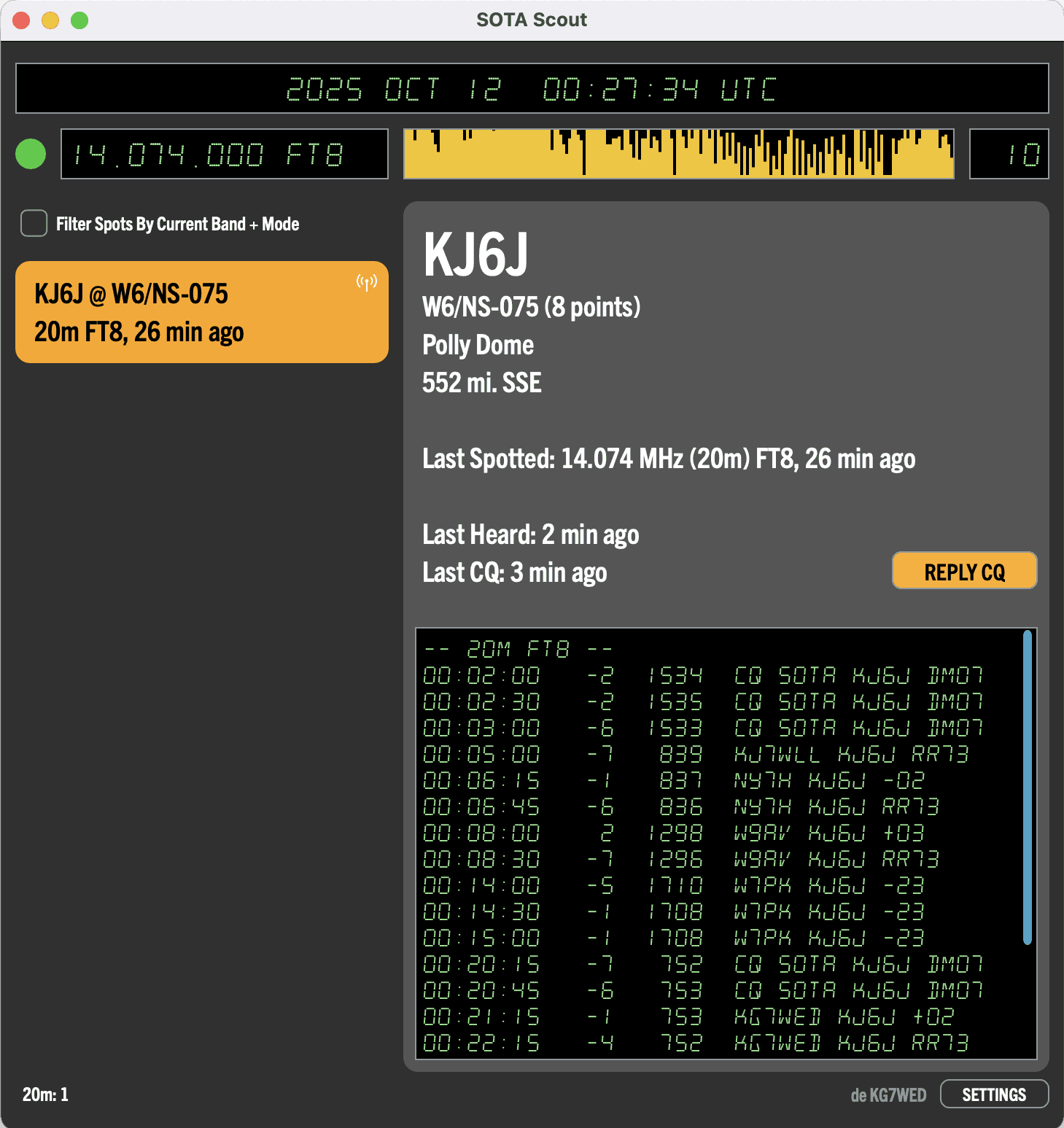
SOTA Scout is an assistant for chasing SOTA and POTA activators using digital modes (e.g. FT8 and FT4). It bridges live data from spotter APIs with remote control of the WSJT-X application, to help you locate and work field activators in the vast sea of FT8 messages.
By providing a clear control panel that correlates SOTA and POTA spots with what you're actually able to hear on-air, SOTA Scout makes chasing digital activators fun instead of frustrating.
SOTA Scout communicates with WSJT-X using the UDP networking protocol, so you can run the two apps on different computers (they do need to be on the same local area network however).
Features
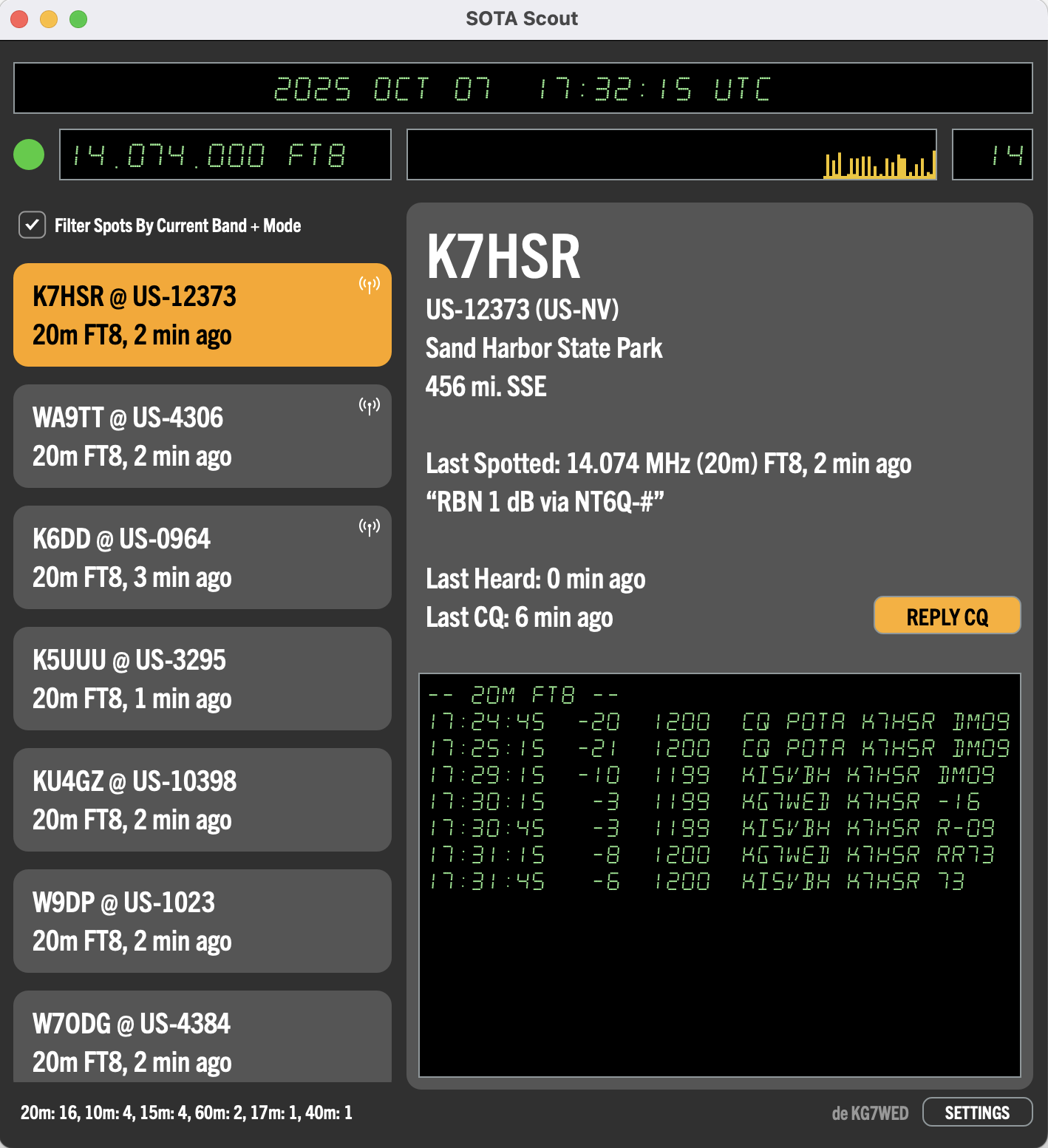
- Displays a list of DATA mode SOTA/POTA activators
- Plays alert sounds to aid in chasing (ships with a curated set of default sounds, or select your own sound files)
- Selecting an activator shows a detail view of their location, spot info, and transmission history
- If an activator has sent a CQ message, a REPLY CQ button allows one-click chasing
- Optionally adds visual highlights to spotted activators' callsigns in WSJT-X's Band Activity window
- For SOTA, when you log a QSO in WSJT-X, SOTA Scout will offer to save an ADIF file that includes the summit data, ready for uploading to sotadata.org.uk (POTA hunters don't upload logs, so ADIF export is not offered for POTA)
Screenshots
FAQ
Is SOTA Scout a logger? I don't need another logger.
No, SOTA Scout is not a logger. It's an assistant for chasing field activators using digital modes.
Can I run SOTA Scout and WSJT-X on different computers?
Yes. SOTA Scout talks to WSJT-X over UDP, so the two can run on separate machines — they just need to be on the same local network, and the UDP address in SOTA Scout's settings must match the one set in WSJT-X.
What does the exclamation point (!) on an activator card mean?
It flags a location you haven't worked before. SOTA Scout checks each spot against your imported history and the QSOs you've logged; if the location isn't in that list, it marks the card with a !.
Why isn't ADIF export offered for POTA?
POTA hunters don't upload their own logs, so there's nothing to export for. For SOTA, logging a QSO in WSJT-X prompts SOTA Scout to save an ADIF file including the summit data, ready for uploading to sotadata.org.uk.
Setup
- In the SOTA Scout Settings window, enter your callsign and your latitude/longitude.
- In WSJT-X, open Settings > Reporting, and under the “UDP Server” section, set it up like this:

The IP address 224.0.0.1 is for multicast. You can change that, but it needs to match the UDP address in SOTA Scout's settings. The options for the "Outgoing interface" may be different on your system – just choose whichever network interface will get you onto the local wifi network. - In order to enable one-click CQ replies in SOTA Scout, you must check the box for "Double-click on call sets Tx enable" in WSJT-X Settings > General
- Optional: To import your history of already-worked locations, open the Stats window (using the button at the bottom). Buttons are provided that will take you to the SOTA and POTA pages where you can export CSV files of your past QSOs and save them to a local file. Then use the "IMPORT CSV" button to load in these files. SOTA Scout displays an exclamation point (!) on activator cards that represent new locations for you. Whenever you log a QSO with WSJT-X, SOTA Scout will add the logged location to its internal list. However, if you work non-data modes, or work on different computers, you may occasionally wish to repeat the Import CSV steps, to keep the display of "new locations" accurate.
Known Issues
- The font embedded in the app does not have a comprehensive extended character set, so non-Latin characters in park names will either be garbled or simply blank. The solution would be to find a font with an extended character set, or get a font fallback scheme working so that a system font with the needed characters could be substituted instead in those cases.
- There can be a lag when initially launching SOTA Scout before it shows the radio status information. During that time period, the app is waiting for a "Status" update from WSJT-X – and in a bit of a Catch-22 situation, it cannot prompt WSJT-X for that update because it does not yet know the ephemeral port number that it can use to talk to WSJT-X. So it just has to wait to hear from WSJT-X for that first time. The duration of this wait won't be longer than the length of a decode cycle.
Contact
Send QSL or inquiries to kg7wed at zuluhour dot com